Showing posts with label Cool Tools. Show all posts

Friday, April 21, 2017

Cool Tool #5: Pixlr

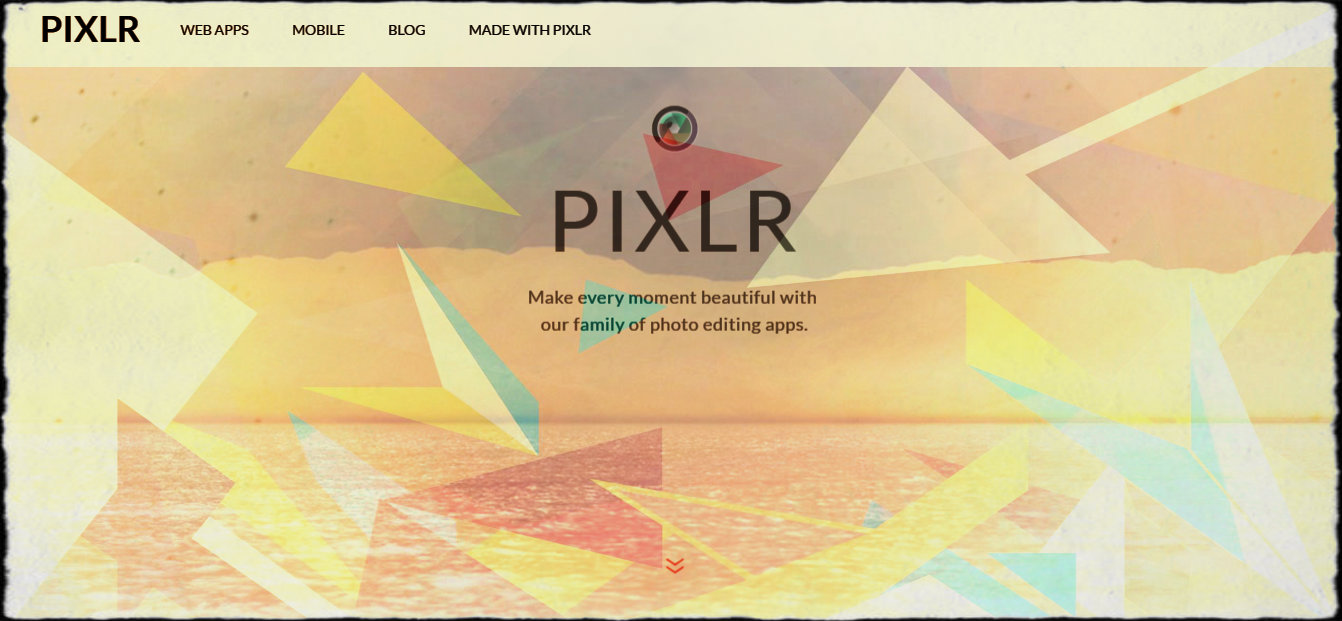
Today I am going to review one of my favorite free photo editors, Pixlr. I have been using Pixlr on my phone for years. It has been my go-to photo editing app, for a very long time. Most of my Instagram posts have gone through Pixlr before being posted. If you look around my blog, you may also notice some pictures have been edited, this has also been done using Pixlr. The picture above was a screenshot of the Pixlr website that I edited with the program. I changed the color to the negative option, added an overlay for the different shapes and then gave it a background. All of that took me about five minutes to complete.

I have tried other photo editing apps in the past, but none of them have made me this happy. I love that Pixlr has a very simple user interface, yet has an endless amount of options to add creative flair to pictures.There are backgrounds, borders, overlays, stickers, text boxes, and so much more that you can add to enhance a picture.

When first arriving at Pixlr.com, you will see three different web app options. They are:


Pixlr O Matic. This web app is a very simplified version of Pixlr Express. There are three steps and you move from one to the next using the next arrows. This app would probably work best with younger elementary students. It gives a taste of editing without being overwhelming.


Pixlr Editor. This web app is the most advanced of the three Pixlr web apps. It would be best suited for high school students or students who are skilled in Photoshop, when editing a picture. A way to use Pixlr Editor in an elementary classroom to start with a new image, which is a white page, and use the sketchy tool to free draw. With my T.A.B. transition, I have introduced a digital media center. In this center, we have been experimenting with Google Drawings. After researching Pixlr Editor, I think that it is easier to draw with, than Google Drawings. I also like that it looks more like an actual drawing than a digital one. There are also so many more authentic drawing options available than in Google Drawings.

Here's an example of a rose I drew, using multiple tools:

The final web app I am going to tell you about is Pixlr Express.

I am most familiar with this app. It is the same on an android device, as it is on the web app. It is very simple to use and like I mentioned above provides many different photo editing options. I think this app is great to make memes or posters for the classroom, if you are a teacher. Using Pixlr Express with students would be easily done. I think most students especially third grade and older would be able to understand the app's features. I can see this being a great way to encourage students to use creativity when they are creating presentations by transforming simple pictures into masterpieces.

I can also see Pixlr Express working with Pixlr Editor or another drawing program. A lesson could be that students draw in the Pixlr Editor, but take their drawings to a whole new level by editing their picture to make it more interesting. For example, take my rose above and look how I edited it in Pixlr Express:


I think that all of the Pixlr Apps have a place in the classroom. It can be used to illustrate a story for English or it can be used as a creative outlet or extension in the art room. I'm sure there are many other subject areas and ways it can be used in your classroom. I highly recommend it! Let me know what you have made or if you have already used it in your classroom. Comment below or tweet me @STEAMJames!

Saturday, April 8, 2017

Cool Tool #4: Seesaw


The cool tool I chose this week is Seesaw. I started Seesaw with the thought that it was an eBook creator for elementary students. What I learned was that it is much more than that. Seesaw is a great app that allows students to share their ideas but also read and comment on the ideas of others. There are six different choices to express yourself.

Students and the teacher can post photos either from the computer or take one directly with the webcam. At my school we mostly use netbooks and Chromebooks, so having saved pictures on the computer is difficult. Having the option to use the webcam is a definite pro for this app. Along with the option to take a picture with the website, you can also record a video using the website, as well. I think this option would be great to introduce new lessons or to promote a flipped classroom. You can also import previously recorded videos too. If you want to important a video from a website you will have to go to the add link option. 

The drawing option is really neat. There are many different colors to choose from and it does a pretty job of understanding where you want things drawn. Some drawing programs like Google Draw, the mouse has a difficult time communicating with program, which makes drawing in the app inaccurate. 

I also like that the drawing app has the option to add text too. There are a couple different options for the writing. It can have different fonts and backgrounds to make the drawings even more interesting. this would be a good tool to use to create a cover for a story. 

I used this cool tool with my after school tutoring third and fifth graders. We decided to create adventure stories and share them in Seesaw. Below is the cover I posted to my students as an example. 

Another option for sharing content on Seesaw is the note option. This is where I had my students write the content of their story. After you publish the note, you cannot edit it. This is frustrating, as a very beneficial part of eBooks is the ability to continuously edit it. This is a con of the tool, unfortunately. I do like it as a brainstorming process, though. My students liked that once they posted a note and the teacher improved it, they could read other students' notes as well. I had students from two different buildings  in the same classroom on the tool. Both sets of students were actively engaged in reading and commenting on others' stories. It was really cool to see their peer reviews and support they left for each other. Here are some of my students' stories:
Above is by a 4th grade girl, who's name is left off for her privacy. 
Above is by a 4th grade boy, who's name is left off for privacy. 

The above picture is by a 5th grade girl. 
My students really enjoyed this cool tool. They have been asking me everyday since I introduced it to them, if they could get on it. I have also noticed that some of them got on it at home or in their free time. I think it is important that students are excited about writing, because when you are excited about something you usually do it more often. Writing is something that improves with practice. I also am a huge advocate for creativity, which this tool definitely offers. I can see its value in other subjects as well. I would like to use it in my STEAM classroom, in the future. 

Have you ever used Seesaw? What do you think about it? How did you use it? Let me know in the comments below. 


Sunday, March 19, 2017

Cool Tool #3: Nearpod


 This week I am going to review another cool tool. I chose a tool that makes presenting a lesson to students on their own devices, easy. The tool is called Nearpod you can check it out by clicking here. Nearpod allows the teacher to create a lesson that can be viewed live or at the student's pace. Creating a lesson that allows students to complete it at their own pace is great differentiation for the classroom. It helps the students who may take longer to read or follow along to to read the lesson at their own pace. On the other hand students who quickly understand can also go out their pace which helps reduce boredom and distractions.

When in live mode, the students can see what is on the teacher's screen while they are presenting a lesson. Also while in live mode the opportunity for students to collaborate becomes available. This is  a really cool feature. I tried it out with one of the fifth grade students that come to my room during recess. She really liked the feature and said she can think of a few ways to use it during her class. Another feature that I really enjoy is the ability to create polls and quizzes during the lesson. This feature is much like Edpuzzle, my first cool review which you can read about here. The polls and quizzes pause the lesson to quickly check for understanding and allows for more student engagement.

Unfortunately, it seems that Nearpod presentations can only be teacher created. I wish that students would be able to use the program to create presentations for their peers. Since students are able to create Google Slides on their own and Nearpod integrates Google slides into its tool really well, I feel this would be the best way for student slide shows to be presented using Nearpod. Uploading PowerPoint presentations is also very easy for Nearpod, so that can be another option for student created work to be integrated into the tool.


Another problem I find with Nearpod is that it has very limited creativity options when creating slides. The text option that is given is standard and cannot be changed. Along with the font itself not being able to be changed, the color of the font is also not able to be changed either.  It does say that the slide component is a beta right now, so hopefully they will make more customization options for slides in the future.

A perk of Nearpod is that it is accessible on all devices. I downloaded the app on my phone to see how it fared on an Android device. The outcome was great for being a part of the lesson, but to create an actual presentation is not possible for the phone app. For schools who practice "bring your own device" this would be a great feature. I enjoy that it is easily used from a web browser. Being in an elementary school with limited technology, websites are the easiest way to introduce new tools to my students.

Another positive of Nearpod is the ability to search for images and other media directly through the tool. Some tools require you to look at Google to get certain media instead of making it an option within the tool. I definitely use a lot of images from Google if the copyright allows for it. I like that Nearpod allows me to do this without opening another tab.

To see Nearpod in action, I have created a first grade lesson below that introduces the science content standard that says "the sun warms the earth". In the upcoming weeks, you are going to see my learning process of going to a TAB classroom. This introductory lesson is step one of my journey.

Friday, March 10, 2017

Cool Tool #2: Venngage


It's that time to review another cool tool! This time I have gone the infographic route and have used my fifth grade students as resources. The fifth graders past project was drawing planets to scale and coloring them with chalk. They also had to glue the planets on a separate sheet of paper in order from the sun. Here is a sample of their work:


I have many different abilities in my classroom, which is wonderful but means that I have half the class finished and the other half still working. Instead of starting something completely new and causing those who are not finished extra stress, I decided to let the students help me out by researching an infographic maker that they liked. The reason that I wanted them to find an infographic maker was so they could create an infographic about themselves. Which would ultimately help them with our clay lesson of totem spoons. I got the idea of totem spoons from this blog, MY WORK and Play: Student Work-Totem Spoons by Elder Thorkelson. The lesson will be to create a clay spoon that tells a story of their personality and interests, similar to a totem pole. 

Back to the research project on infographic makers...
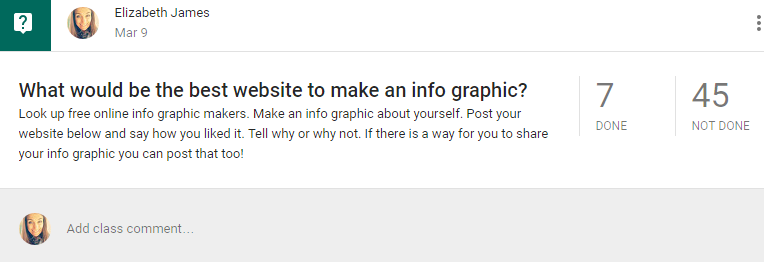
To help the students organize their ideas and discuss their findings with their classmates I created a Google Classroom discussion question:


The list the students came up with were:
I chose Venngage mainly because it was the favorite of my students and it seemed like the easiest for them to use. Since this was just a trial assignment, I do not have any student work yet. Hopefully I can update you in the future once we have completed the lesson. In the meantime I will show you my experience with it. 

Signing up for Venngage is very simple. I appreciated that when the students selected that they were a student, an email was not required nor was the exchange of personal information. It is really rare to find a tool that has a simple sign up process for students. Once on the website, a surplus of templates are available. Some are premium only, but there are still many that are free. 

Venngage offers many different options to create exactly what you want. You can choose from infographics, reports, posters, promotions and social media advertisements. Many of these choices are geared for business rather than education, but some can benefit both fields. An example from the social media category is at the top of this blog. This style is found under the blog headers template. It was very simple to make and took me about five minutes to choose my colors, type my words and add the graphics I wanted. If you want to add some flare to your blogs, I highly recommend this tool! 

For this lesson, I am going to have my students focus on the infographic category. One advantage of this tool is that it labels each layout on difficulty, which is very beneficial in an elementary classroom. The three options are beginner, intermediate and advanced. I will encourage my students to use the ones marked beginner since this is their first experience with making an infographic. A disadvantage is that there are very few beginner infographic layouts to choose from. 

To start my infographic I chose the "Vibrant Infographic" layout. I had some difficulty manipulating the text that came with the layout. I had to delete the given text boxes and add in my own. Fortunately my fifth graders are really advanced when it comes to manipulating technology, but for those who are not as familiar may have some difficulty and frustration. Once I was able to move the text boxes to where I wanted I appreciated the grid lines that appear to ensure centered words to the page and to other items on the page. 

After putting the text I wanted into my infographic I started adding my graphics. I founds that the monochromatic icons had a large selection but the graphics that had a lot of colors were a premium feature. Overall I found myself having a difficult time getting my infographic to be exactly how I envisioned it. That could be in part with being a perfectionist. I am looking forward to finding out whether or not my students have more success. Here is the example I am showing my students:

Once I got the hang of all of the tools and figured out all the cool features I liked this tool. If I were to give it a rating on a scale of 1-5 stars, it would get a 3. I think it is a little difficult to use and can cause frustration easily. Check it out for yourself and let me know what your experience was by leaving a comment below!

Thursday, March 2, 2017

Cool Tool #1: EDpuzzle


Hello people of the Internet! Today I am going to review a free online website called EDpuzzle (edpuzzle.com). This website allows teachers to customize online videos from various sources such as YouTube, Khan Academy, and TED Talks. There are other video sources to choose from, I just listed the video sources that were the most familiar to me. The options for customizing the video range from trimming the video to show exactly what you want the students to focus on, to creating voice notes that you have recorded to further explain a concept given in the video. This website would be very beneficial to the flipped classroom or blended classroom. A flipped classroom is where students watch a given lesson on their own time and devote their class time to projects, exercises and discussions ("EDUCAUSE", 2012). A blended classroom is when online learning is combined with classroom learning, allowing students the ability to control their pace, time and place of learning.  ("The Basics of Blended Instruction", 2013) As a "specialist" teacher in the elementary I have not ventured into the flipped classroom model, yet. I am much more familiar with the blended learning, as integrating technology is a very important part of all of my lessons.

Aside from editing videos, EDpuzzle also gives the option to create questions that go along with the video as it is playing. These questions can ensure that students are understanding certain points and allows students to monitor their own understanding of the lesson. If a question is not the way you choose to hammer a point home, EDpuzzle also gives the written comment option. Since my school computers do not have microphones, it is easier for me to comment on a point through writing than the voice notes that I mentioned above.

Now that you have an overview of the website, I am going to show and tell of my experience of developing a lesson for my class. I have chosen second grade, as we just finished a unit on creative careers, hopefully I can share that lesson with you in the future!

The lesson I chose to teach comes from the Ohio New Learning Science Standards with a focus on the life science topic, "Interactions Within Habitats: Living Things Cause Changes on Earth". The students will make composting bins as a group with live worms. To better understand what worms need to survive and how they impact the environment, the students will watch an introductory video created using EDpuzzle.

When you first go to https://edpuzzle.com/ you will be brought to the starting page that will look like the picture below:

Creating a teacher account is really easy and free! If you use Google Classroom, connect your school Google account. It was so amazing to me that it imported all of my classes, allowing me to easily share my lessons with my students. You can also create a lesson directly in the class folder. I tested out the student option. It seemed really easy too, it is also free! I used the google option to immediately sign me up, which for elementary students would probably be the easiest. It asks you to join a class, I'm not sure whether or not you will automatically be put into the Google classroom on the site or not. 

Once a login has been created a tutorial on how to make your first video comes up. It gives a step-by-step process that is at your own pace. It also allows you to test out each step before moving on to the next one. Being a kinesthetic learner I really appreciated this teaching approach.

Back to my lesson. Last year to teach this lesson I used a really cool TED-Ed video called "Vermicomposting: How worms can reduce our waste - Matthew Ross". I wanted to use this video again and thought that I would try out EDpuzzle with it. Below you can view my lesson creation.


While exploring the EDpuzzle site, I stumbled upon their "Gradebook" option that allows a teacher to use the questions given during the lesson as an assessment. Check out the quick video from the EDpuzzle YouTube channel for more information. Unfortunately this is a paid feature, but they do say you can get it for free if you have a seminar for teachers at your school. I haven't tried that out yet, but I am looking into it.


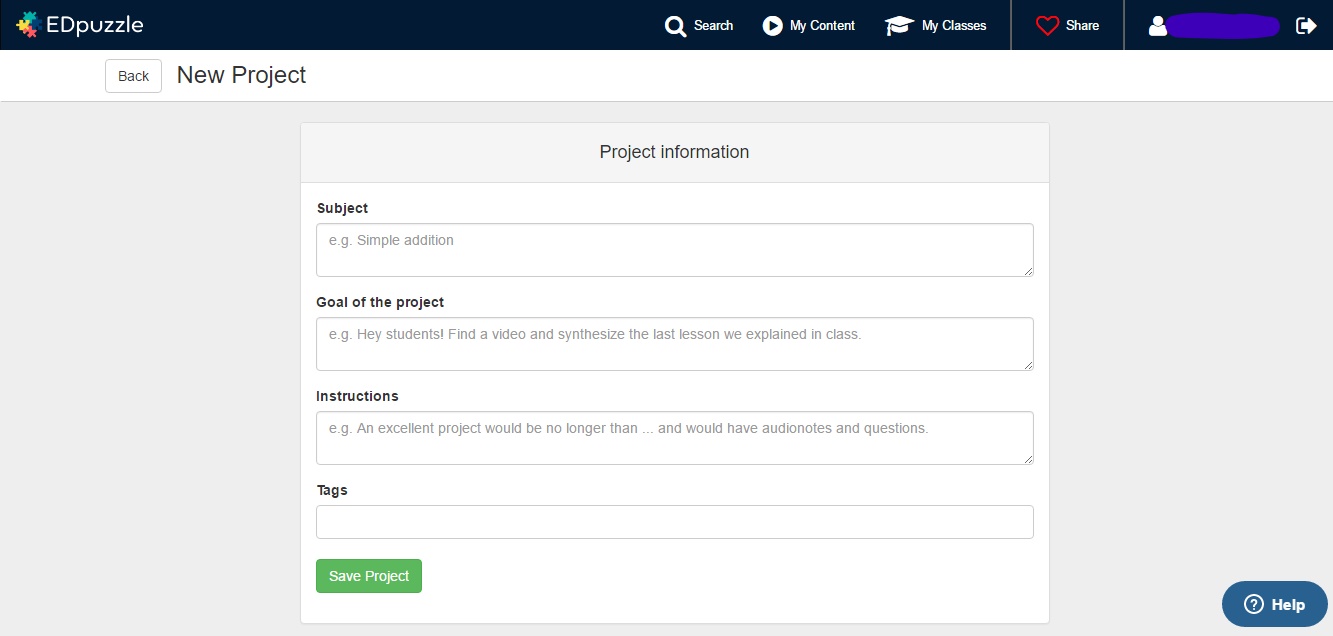
I have really enjoyed using this website. I feel that there are many lessons that I can create for the students in my STEAM classroom. EDpuzzle is a great tool for teachers to create videos, but students can use it too! In the classroom section of the site, you can assign a project. The assignment screen is as appears below:


The teacher gives the subject, goal of the project, and instructions. The students do the rest using the site. I am looking forward to using this with my older students in the future. I think my fifth graders would really enjoy it, especially as they get the "middle school itch" during the fourth nine weeks. 

If you have experience using this website and have had some really great lessons. Please let me know, I love learning what others have come up with. As I get more familiar with this website, I will update you. I hope you try it out if you haven't yet! I would love to hear your experience, leave me a comment below. 😊

EDUCAUSE [Advertisement]. (2012, February). Retrieved March 2, 2017, from https://net.educause.edu/ir/library/pdf/eli7081.pdf

A. (2013, March). The Basics of Blended Instruction. Retrieved March 02, 2017, from http://www.ascd.org/publications/educational-leadership/mar13/vol70/num06/The-Basics-of-Blended-Instruction.aspx